> ## Documentation Index
> Fetch the complete documentation index at: https://docs.argil.ai/llms.txt
> Use this file to discover all available pages before exploring further.
# Edit the style of your avatar
> How to create different styles and variations for your avatar
### What does "Edit style" do?
Variations allow you to add any product to your avatar or simply edit any aspect of the picture, whether it is the color of a shirt, the position of the hands or the background.
Major benefits:
* if you have created a style your are 95% satisfied with, you can still edit it later within Argil
* you can develop a whole branding easily around your avatar
**In the "Avatars" tab section, you can click on any avatar > click on "Edit style".**
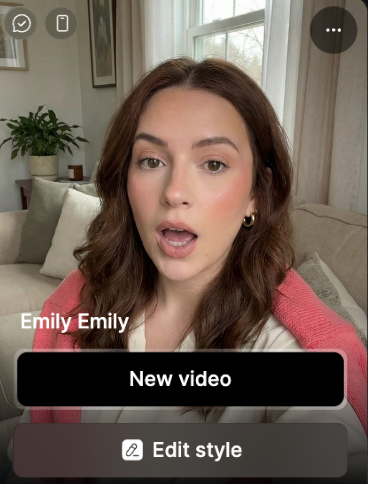 Ask in a natural languages the changes you want. You can go into a lot of details.
Examples:
"change the color of this car to red", "zoom out on this picture", "change the haircut to a ponytail".
Ask in a natural languages the changes you want. You can go into a lot of details.
Examples:
"change the color of this car to red", "zoom out on this picture", "change the haircut to a ponytail".
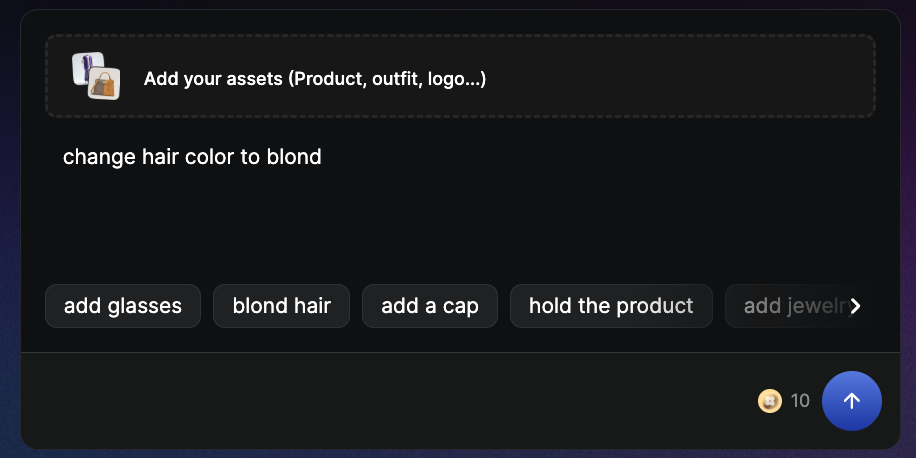 Keep in mind that each iteration will cost you 10 credits and that you can only keep one style change for now.